



image

GS Ballistics

GS Ballistics

GS Ballistics is an Android app for long-range shooting: it works out the elevation to dial on the turret for any distance, with a real ballistic engine — G1/G7 drag tables and real atmosphere, not an approximate formula. It comes with a library of over 200 bullets, plus saved bullets and ranges that keep the elevations verified on the range, and the matching table and charts.

Get GS Ballistics on Google Play

Home dashboard

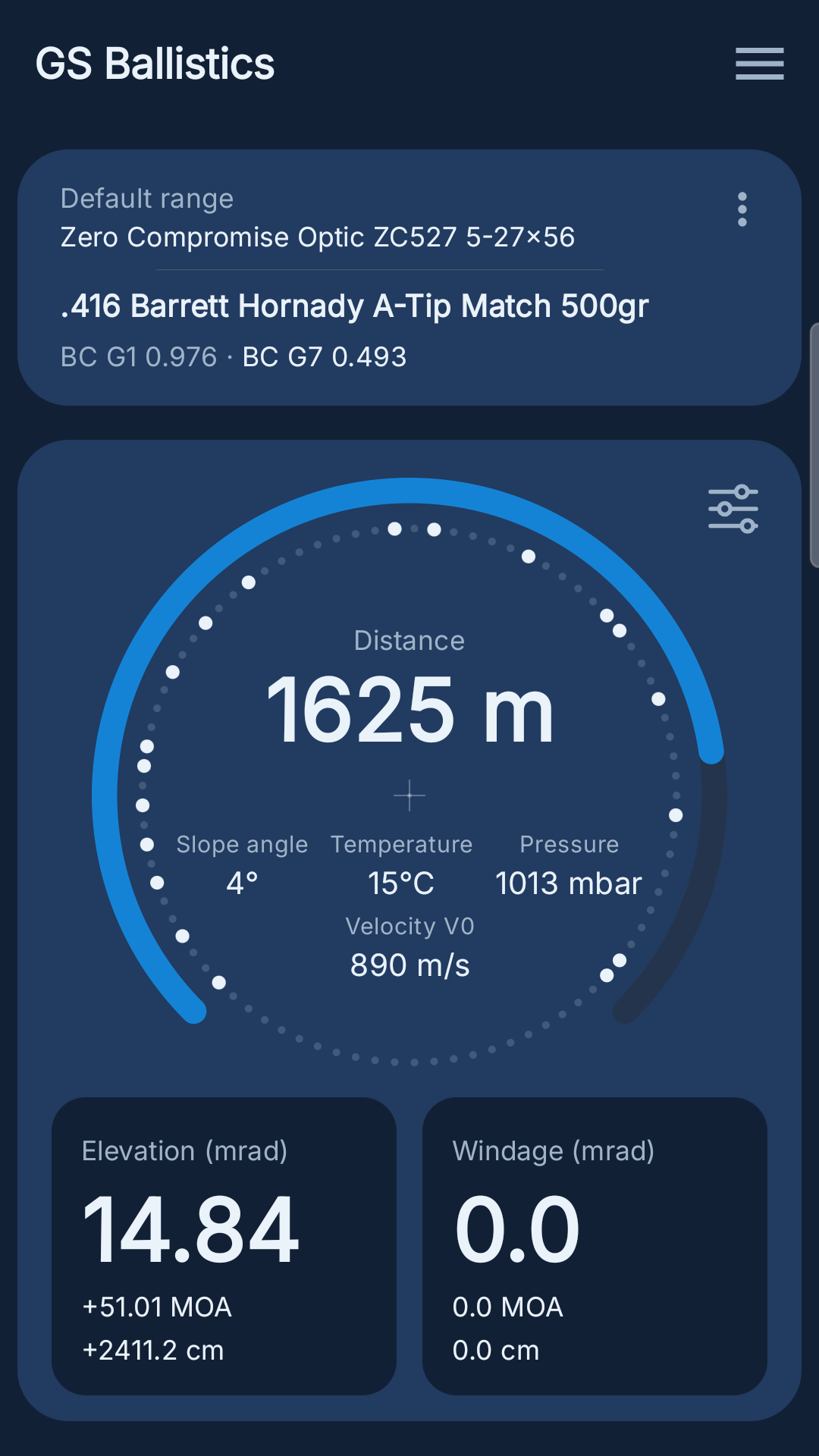
The Home screen shows the elevation to dial on the turret for the selected distance, worked out from the active bullet and optics.
9:41100
Home dashboard

The distance is changed with the gauge: the elevation updates automatically. On screen you find:

  • the bullet and the optics currently active;
  • the gauge and the distance set on it;
  • slope angle, temperature, pressure and muzzle velocity used in the calculation — each one opens with a tap to be changed;
  • the calculated elevation, in green when it has been verified on the range for that distance;
  • the horizontal windage.

The V0 velocity is the bullet's speed as it leaves the barrel, that is the one measured at the muzzle (at the muzzle brake) with a chronograph: it is the starting point of the whole trajectory, so a wrong value here shifts the elevation at every distance.

Temperature and pressure set the air density and the speed of sound: using values other than the real ones produces an error that grows with distance. It is worth updating them from here before every shooting session.
Slope angle

An uphill or downhill shot needs less elevation than a flat one at the same distance, and the difference grows with the angle and with the distance: that is why the slope angle goes into the calculation alongside distance, bullet and atmosphere.

9:41100
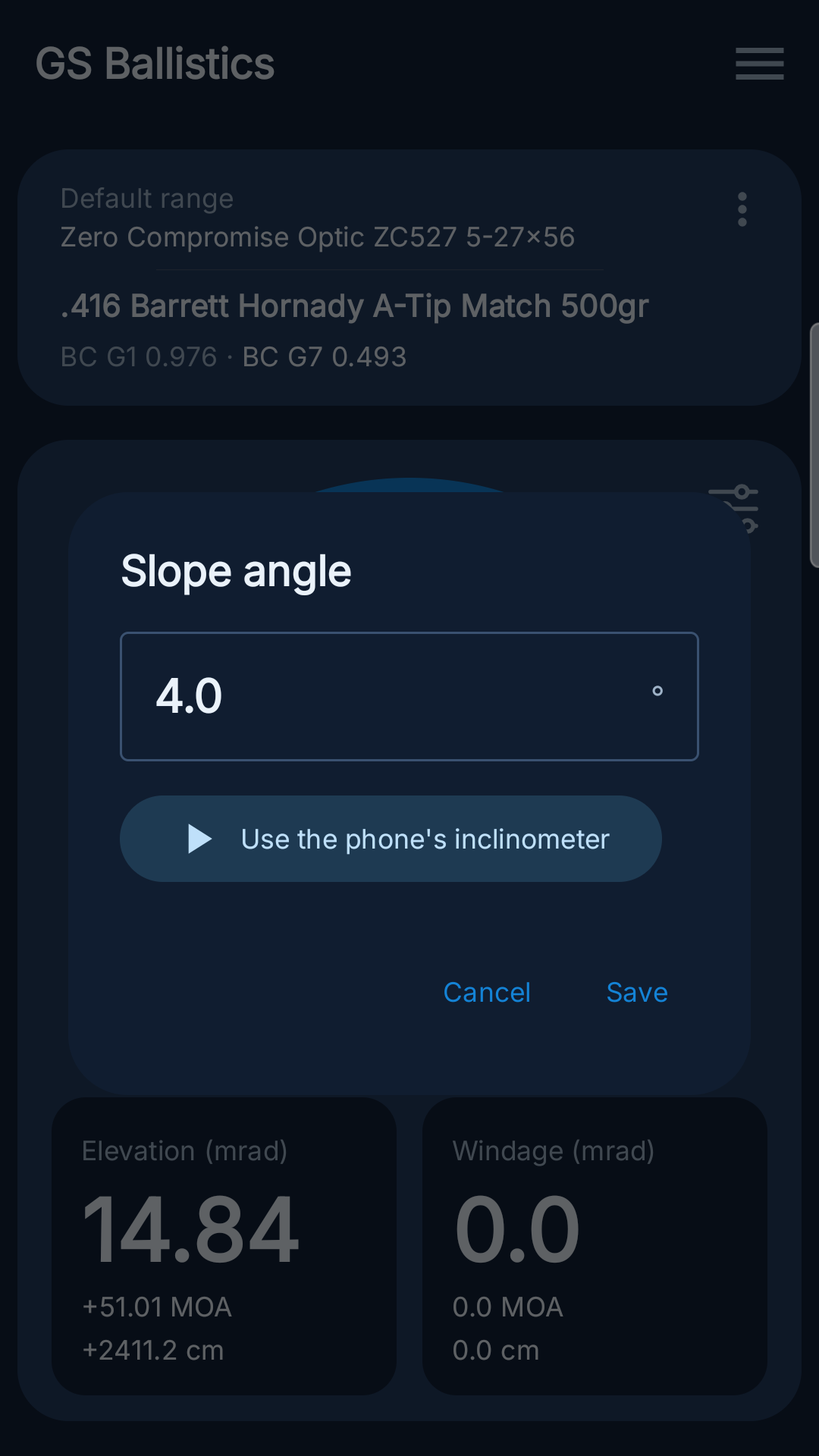
Slope angle dialog with the inclinometer

Tapping "Slope angle" opens the same kind of popup as temperature and pressure. The "Use the phone's inclinometer" button reads the phone's sensor in real time — laid flat on top of the barrel or the scope, with its top end pointing at the target — and keeps updating the value until you stop it; from there it can also be corrected by hand before saving.

Saving updates the active range only if the distance set on the gauge matches an already saved target exactly; otherwise the value holds for this reading alone.

Optics and reticle

The first value to settle is the angular unit of the reticle mounted on the rifle: MOA or MRAD. Every elevation the app calculates is expressed in that unit, so this is where you start. Several optics can be kept in the list and switched between: the one with the check mark is the active optic, the one used for the calculation.

9:41100
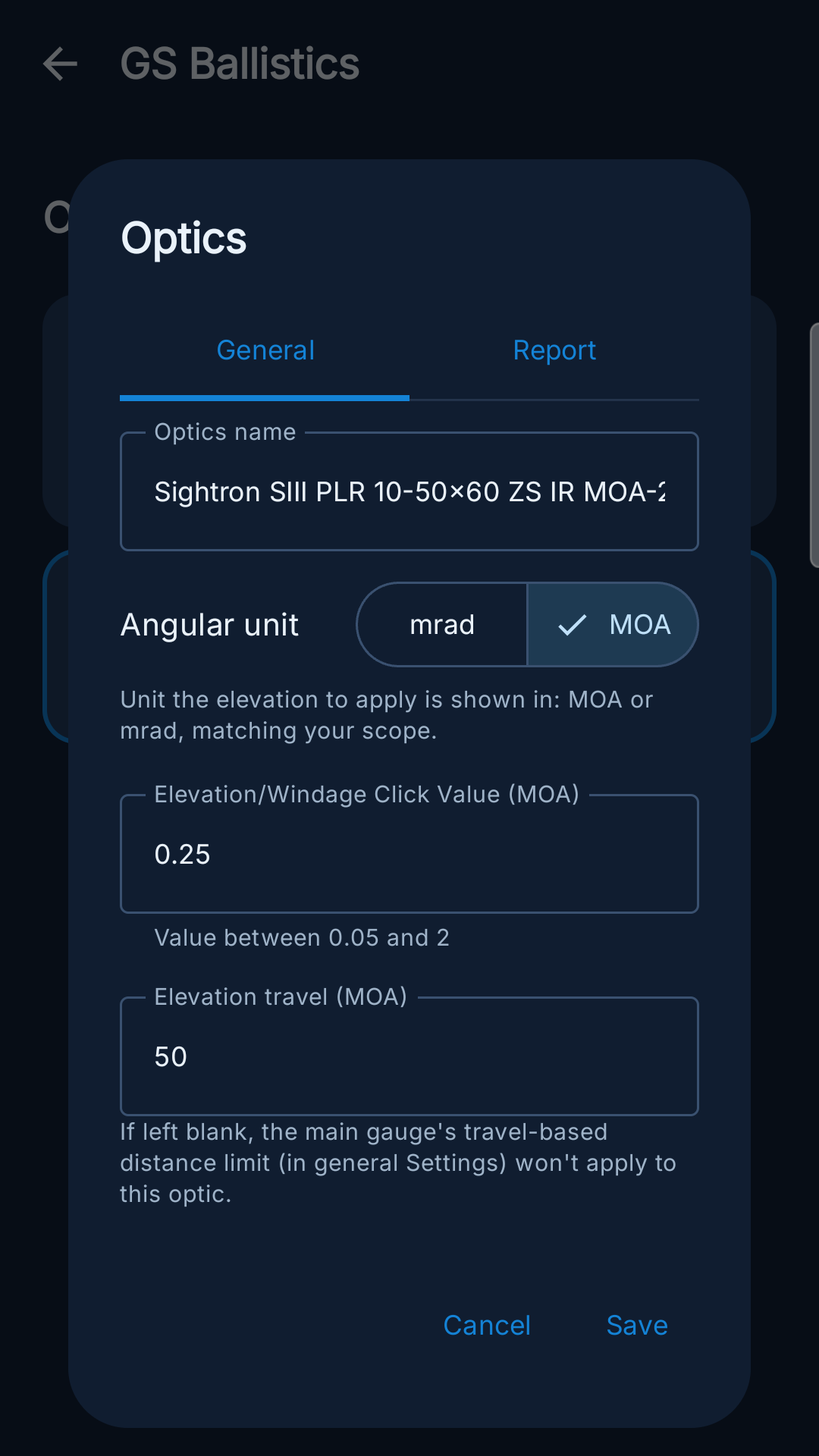
Editing an optic: reticle unit, click value and travel

Three values are set on the optics card, each with the note the app shows underneath it:

  • Angular unit — unit the elevation to apply is shown in: MOA or mrad, matching your scope.
  • Elevation/Windage Click Value — what one turret click of elevation/windage is worth, in the unit chosen in settings. Examples: 1/4 MOA turret → 0.25, 1/8 MOA turret → 0.125, 0.1 mrad turret → 0.1.
  • Elevation travel — if left blank, the main gauge's travel-based distance limit (in general Settings) won't apply to this optic.

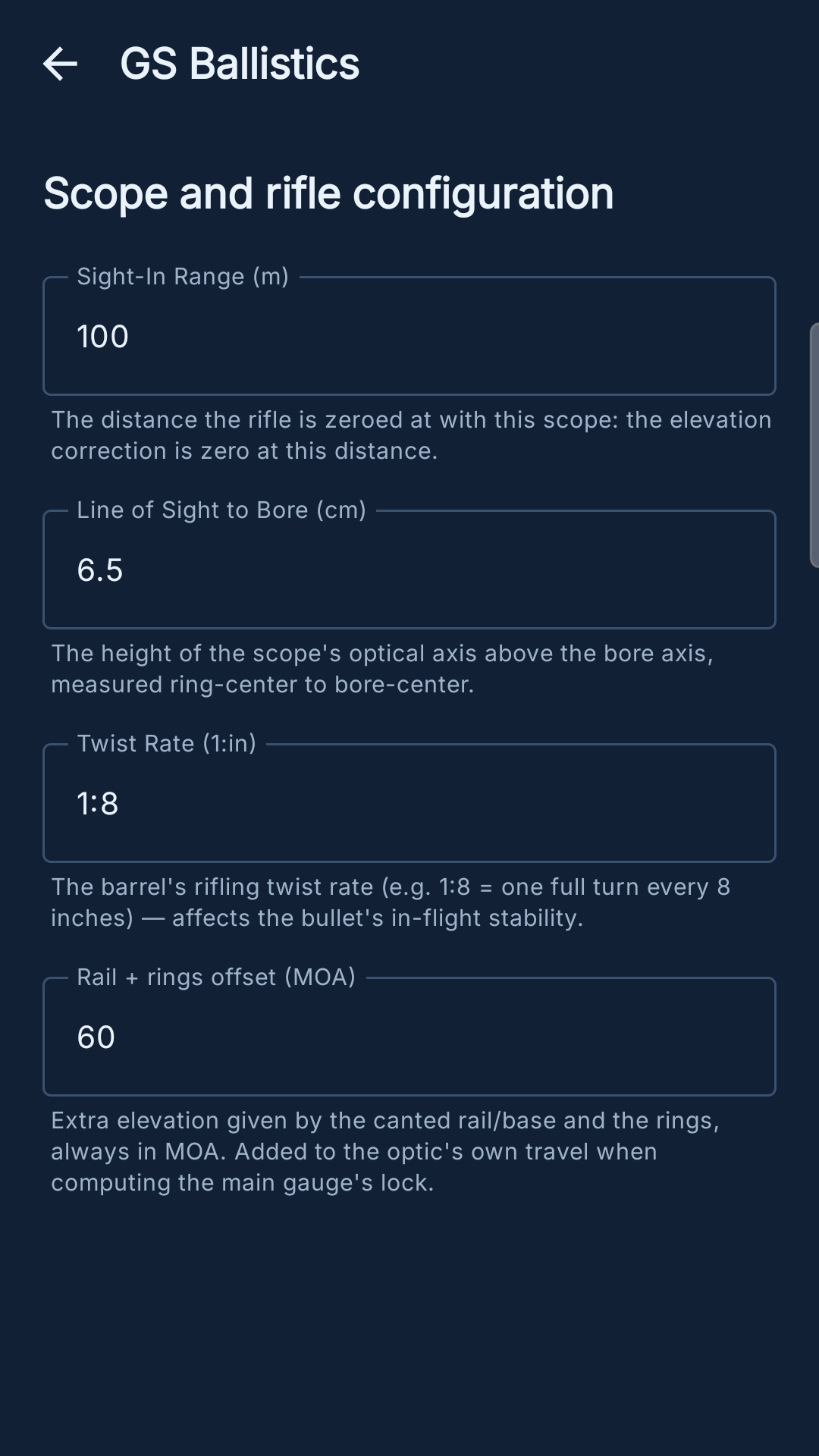
Scope and rifle configuration

Another set of values, entered once per rifle rather than at every shot, goes into the calculation as well. They live on a dedicated screen, shared by every saved bullet.

9:41100
Scope and rifle configuration

There are four fields, each with the note the app shows underneath it:

  • Sight-In Range — the distance the rifle is zeroed at with this scope: the elevation correction is zero at this distance.
  • Line of Sight to Bore — the height of the scope's optical axis above the bore axis, measured ring-center to bore-center.
  • Twist Rate (1:in) — the barrel's rifling twist rate (e.g. 1:8 = one full turn every 8 inches) — affects the bullet's in-flight stability.
  • Rail + rings offset — extra elevation given by the canted rail/base and the rings, always in MOA. Added to the optic's own travel when computing the main gauge's lock.

Bullets and the bullet library

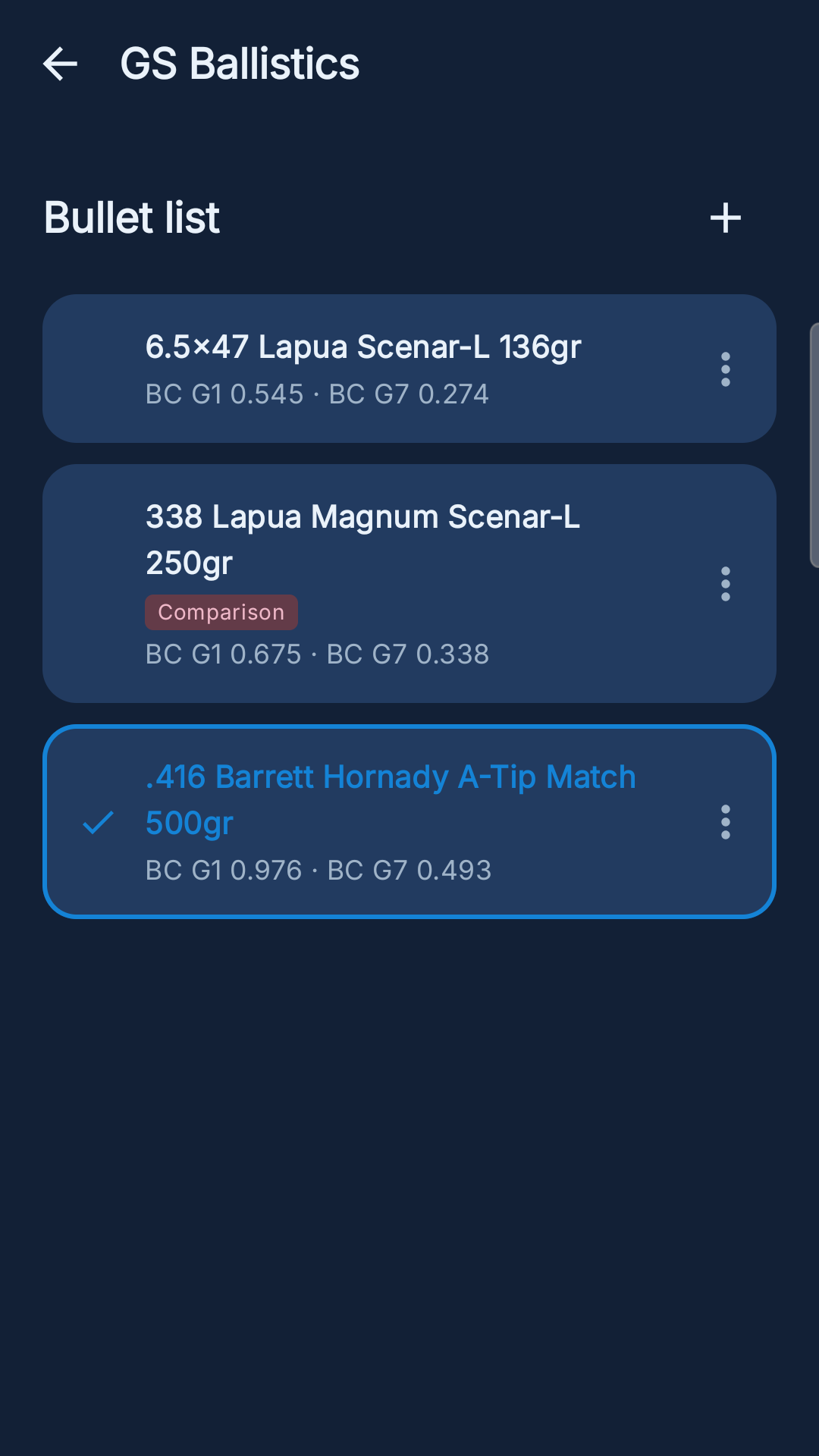
The elevation calculation depends on the bullet's ballistic coefficient (BC): with no bullet selected, or with the wrong BC, the calculated value cannot be trusted. Where both G1 and G7 are available the app defaults to G7, more accurate for the long-ogive match bullets typical of long-range shooting.

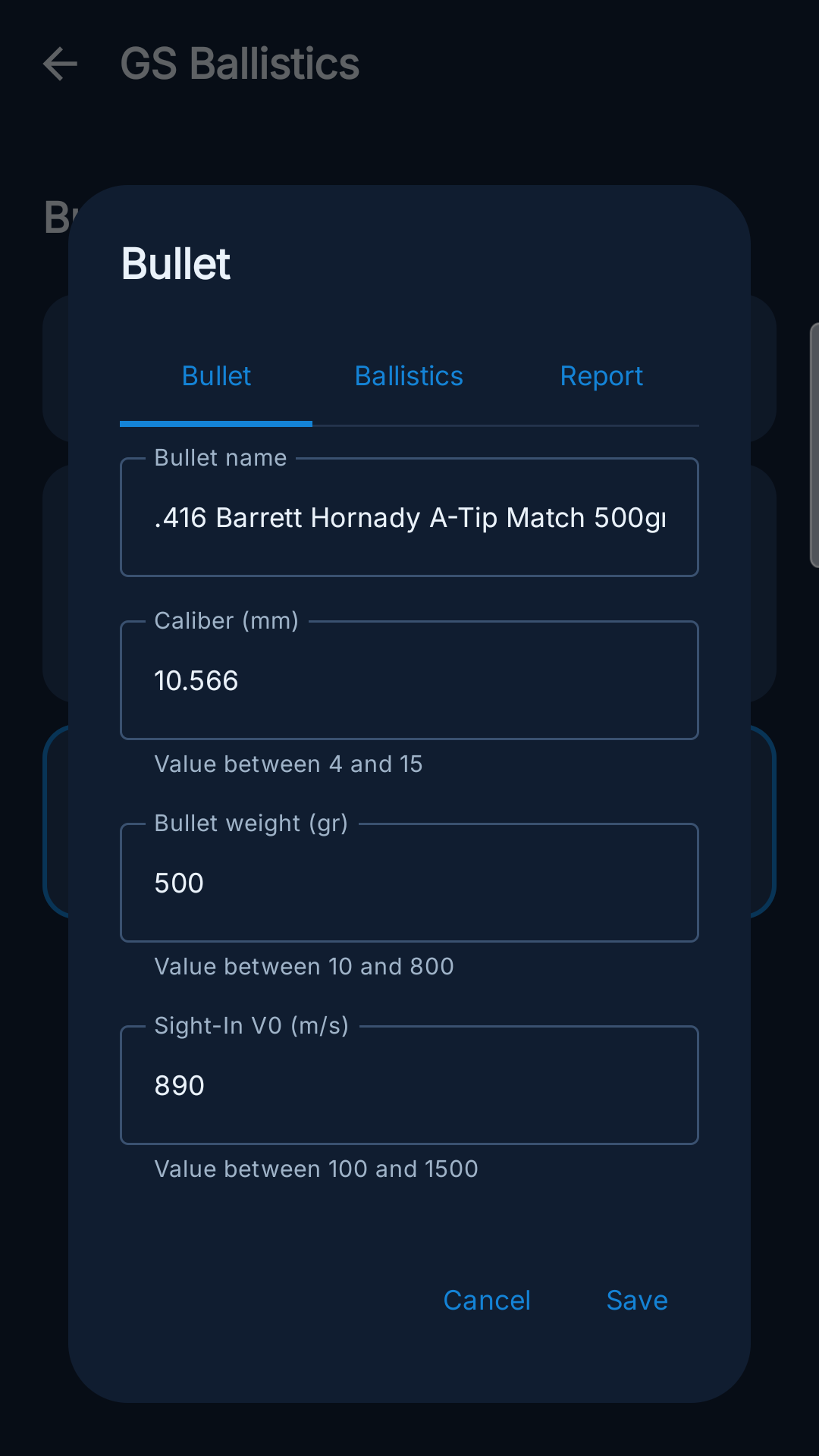
The bullet library holds over 200 entries with factory data from the main manufacturers. Every saved bullet stores caliber, weight, muzzle velocity and the G1 and G7 ballistic coefficients. A bullet can be created by picking one from the library — the data is pre-filled and can be edited — or by entering every value by hand.

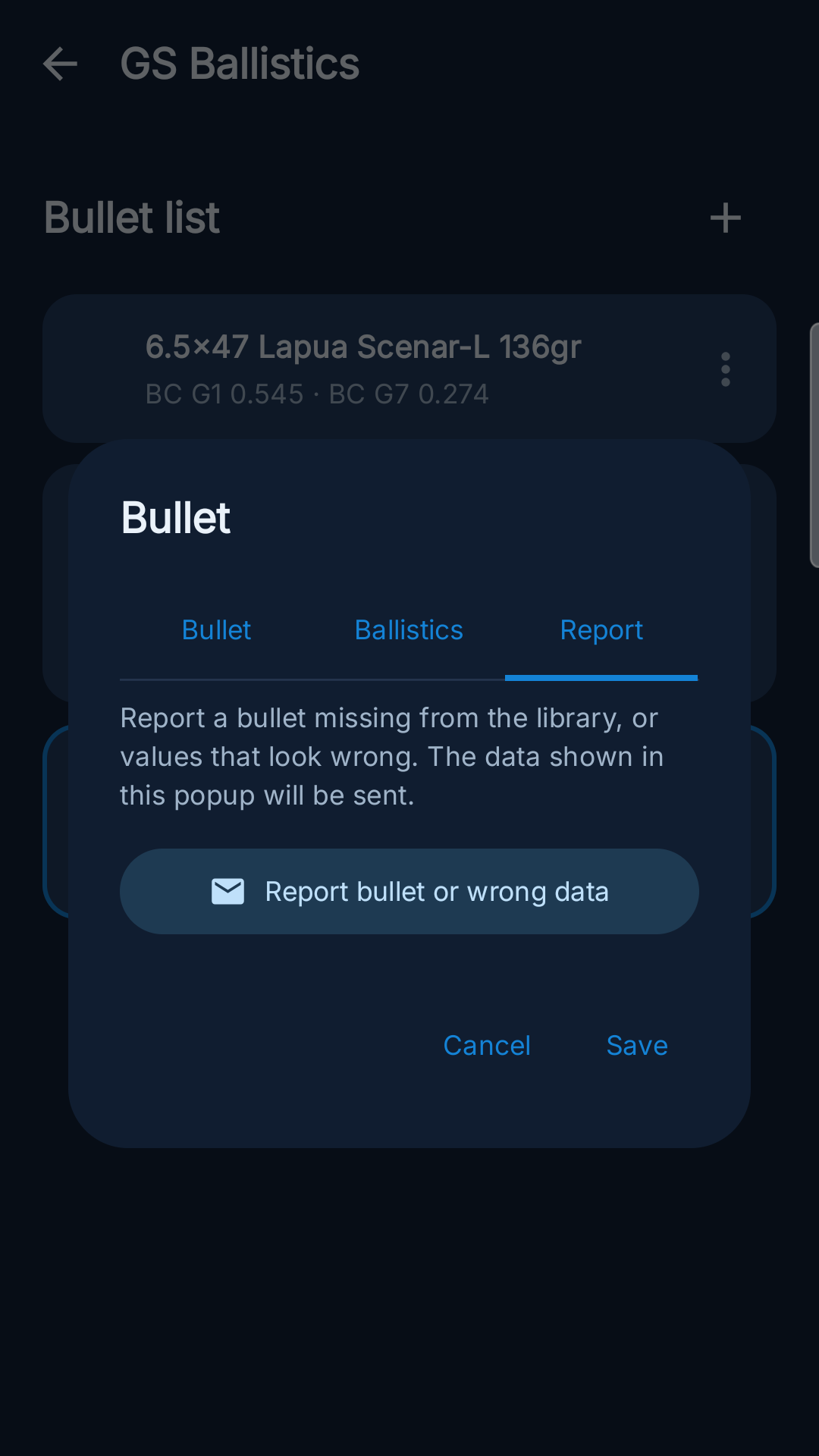
If a bullet is missing from the library, or the values shown look wrong, it can be reported straight from the Report tab of the edit popup: the report carries the data currently shown on the card plus a field for an optional note, and is sent to the developer by email.

9:41100
Bullet list
9:41100
Editing a bullet
9:41100
Reporting wrong data

Verified shot correction

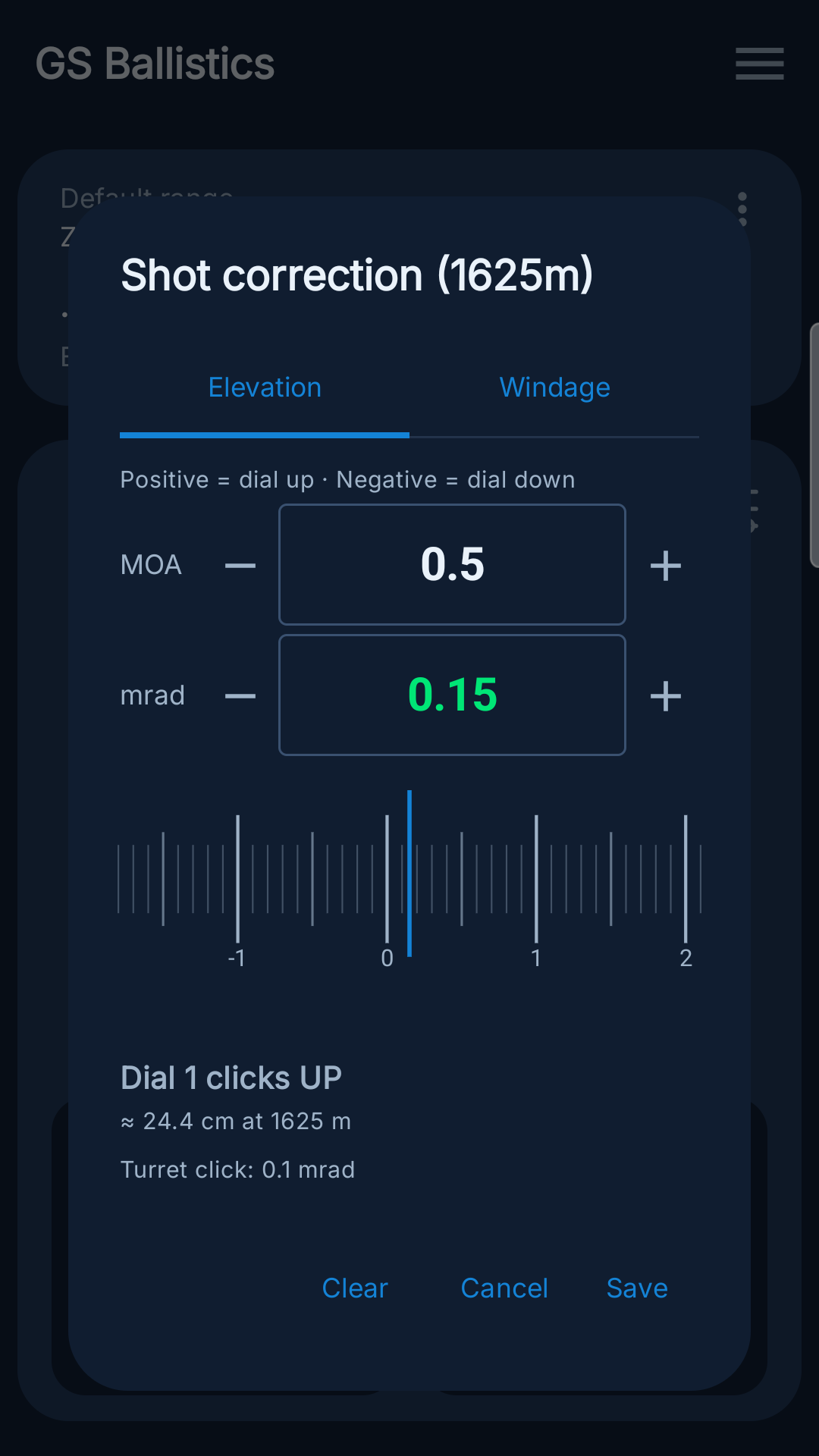
After a shot, the elevation actually verified can be logged for the distance and the rifle in use. The logged value is compared automatically against the calculated one and stays attached to that rifle/distance pair.

9:41100
Shot correction

Both values are always there. MOA and mrad are shown side by side and update each other: whatever you type into either field, the other immediately shows the same correction converted into the other unit.

It pays off above all when your spotter calls the correction in whichever unit they prefer: you enter it exactly as it was given to you and read straight away what it is worth in your own turret's unit, with no conversion in your head.

Below, the draggable ruler handles fine adjustment. At the bottom the app states how many clicks to dial and in which direction, how far the point of impact moves at that distance, and the click value of the turret it is using.

Ballistic table and distances

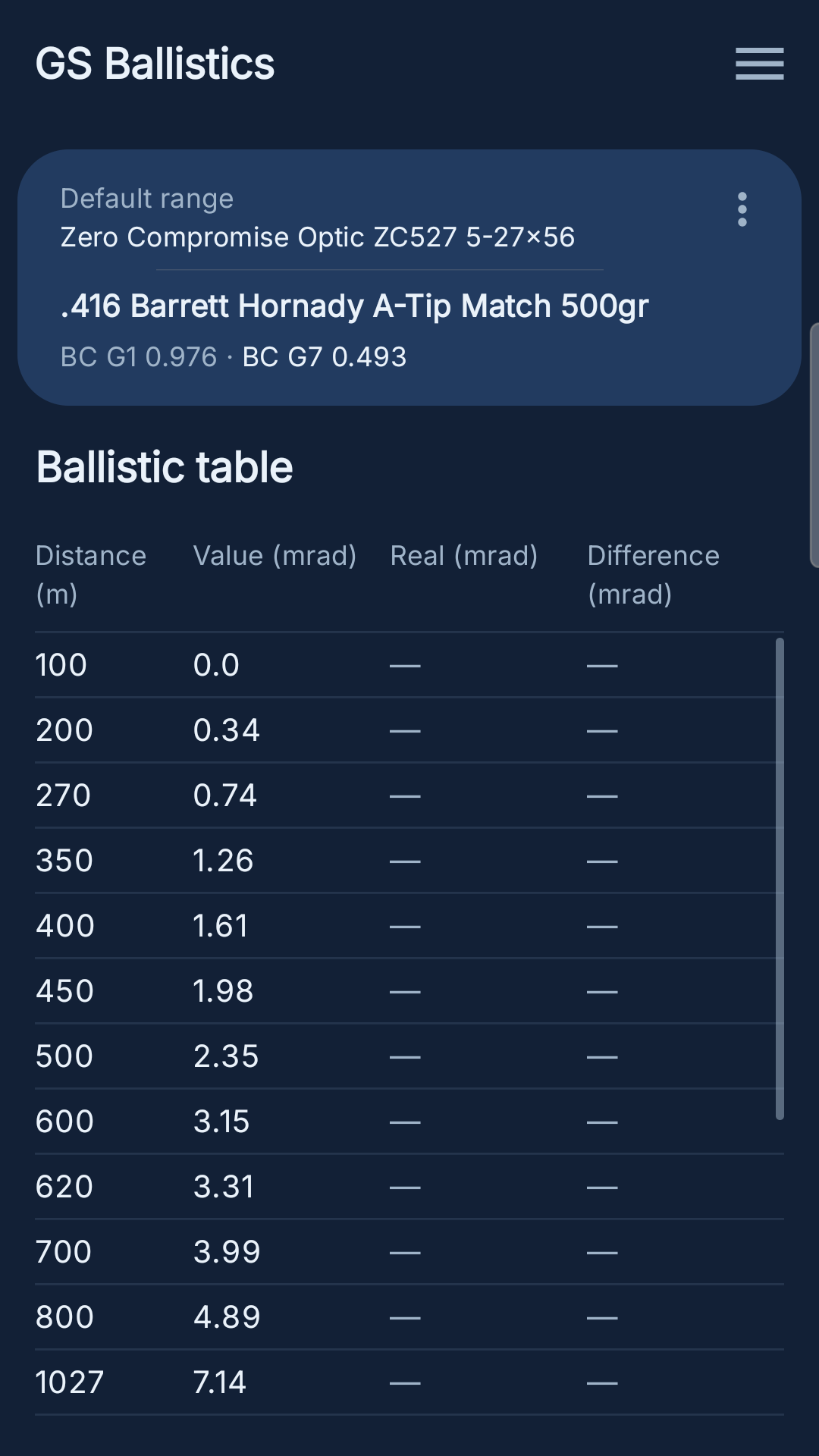
Once the distances of your own range have been entered, the app builds the matching ballistic table automatically, so the whole range reads at a glance instead of one distance at a time. Each row carries the distance, the elevation calculated by the engine, the real elevation logged on the range and the difference between the two — so a drift between model and reality shows up immediately, distance by distance.

9:41100
Ballistic table
9:41100
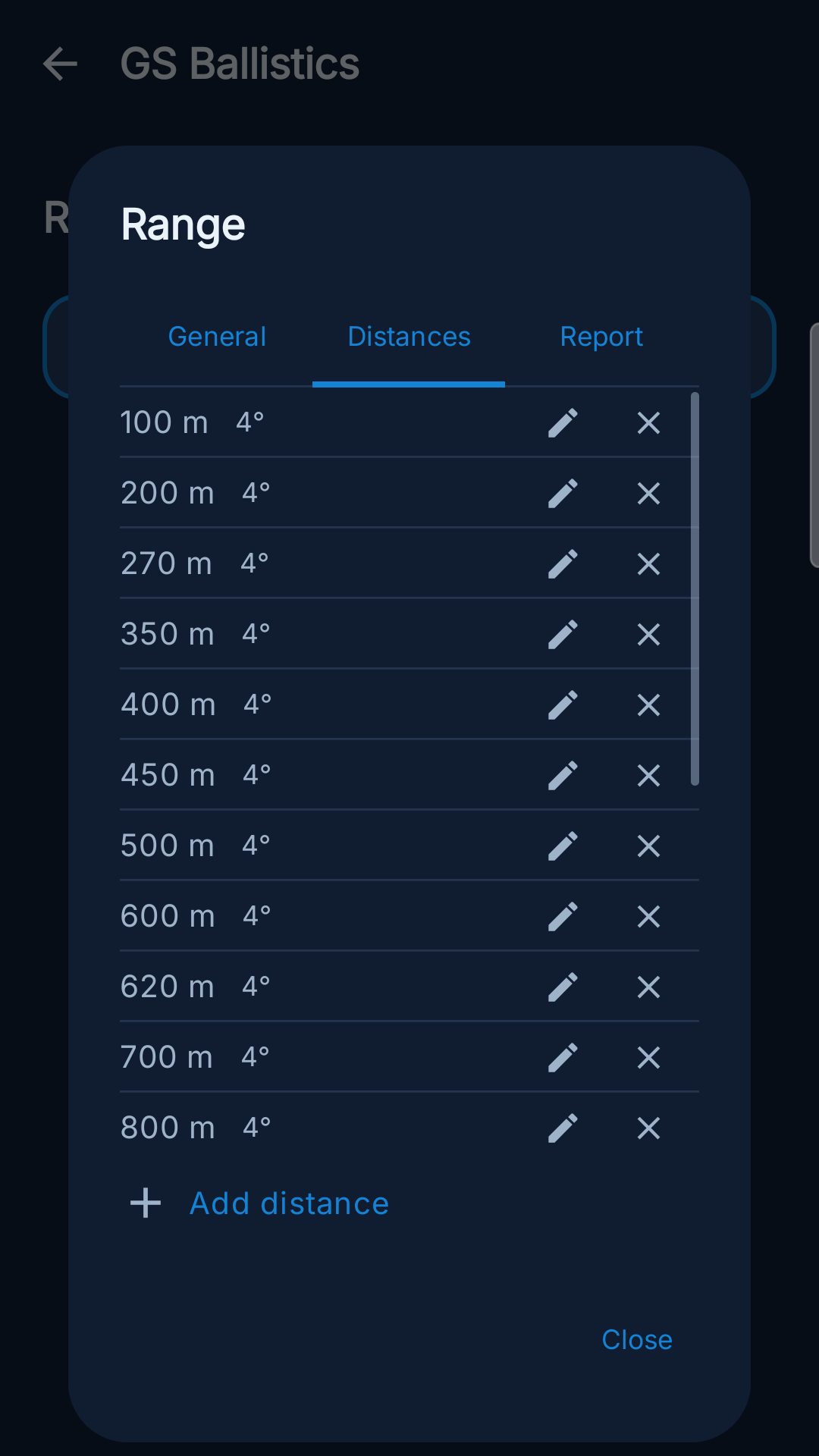
The range's Distances tab
9:41100
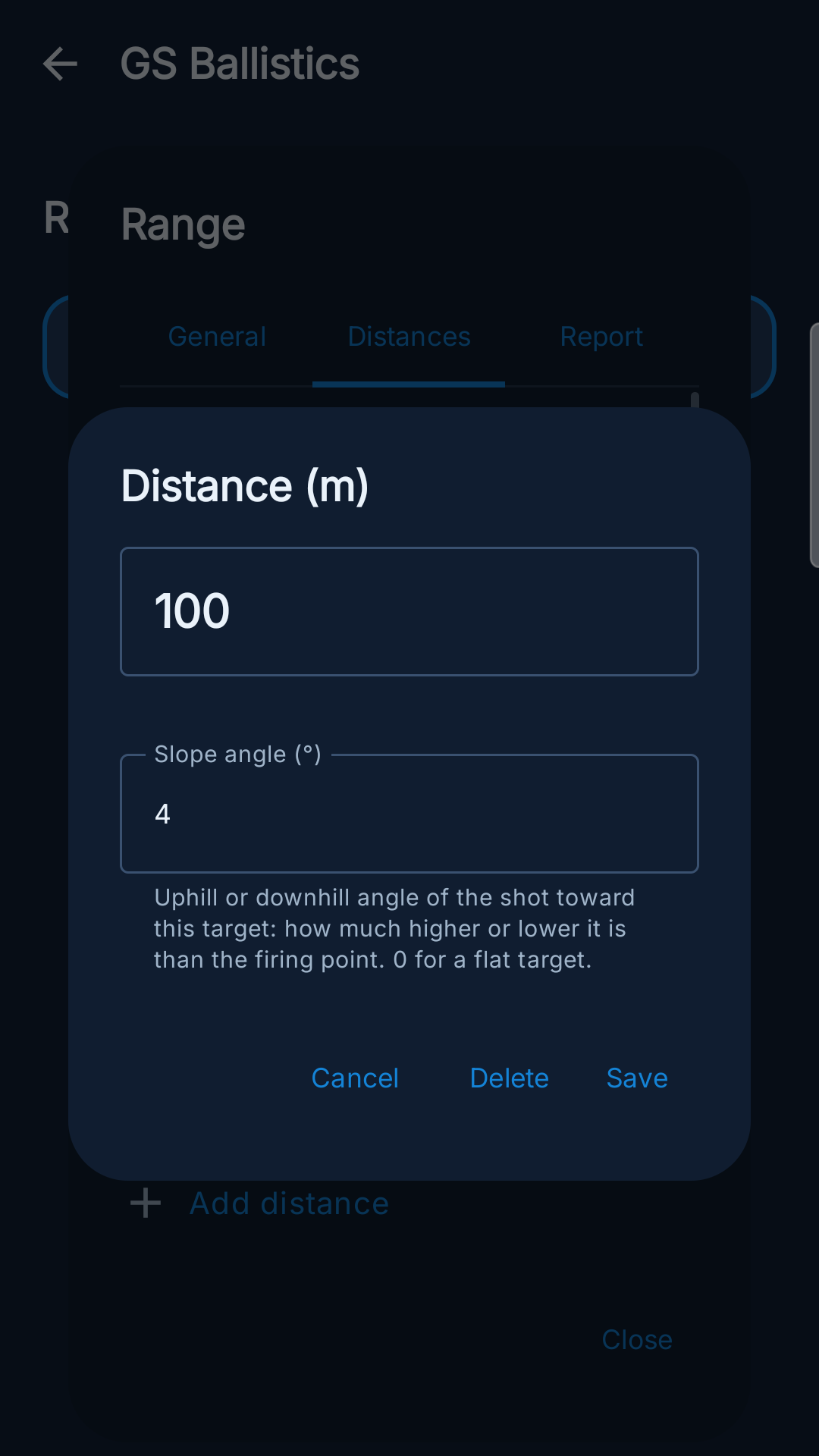
Editing a distance: value and slope angle

Distances are managed range by range, from the "Distances" tab: each row is a target, with the distance on the left, its slope angle next to it, and the pencil and the cross to edit or delete it; "Add distance" inserts a new one.

Tapping the pencil opens the card for that one target, with just two fields: the distance in meters and its slope angle. As the app's own note under the field puts it, the angle is the uphill or downhill angle of the shot toward this target: how much higher or lower it is than the firing point, with 0 for a flat target.

So every target carries its own angle, not the range as a whole. When the Home gauge lands on a distance that has not been saved, the angle is interpolated between the two nearest targets.

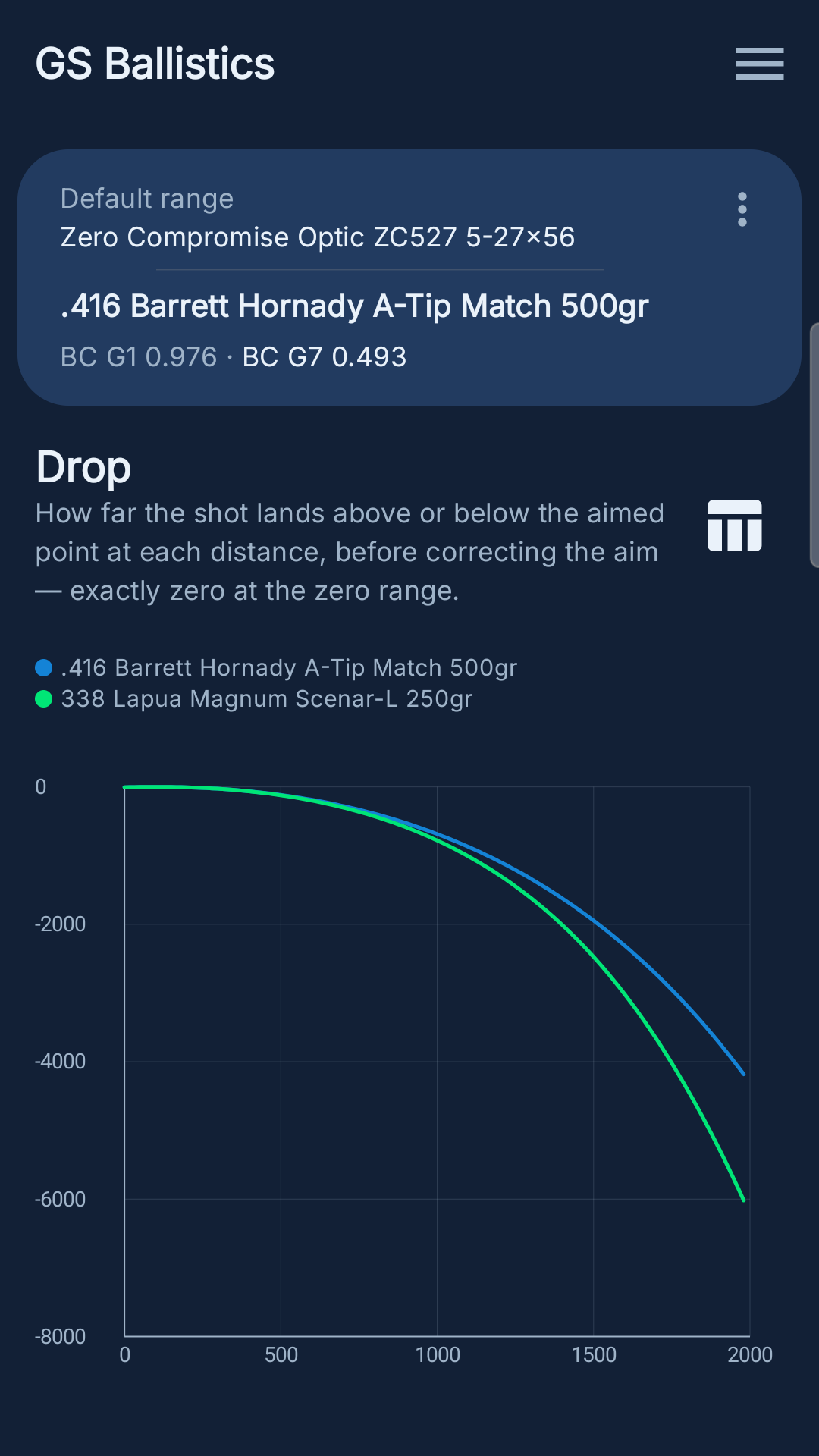
Drop chart

How far the shot lands above or below the aimed point at each distance, before correcting the aim — exactly zero at the zero range.

9:41100
Drop chart

Every table in the app has its matching chart, reached with the same table/chart swap icon at the top right: the curve shows at a glance where the trajectory really starts to fall away, something a column of numbers makes far less immediate.

Comparing two bullets. From the bullet list, through a row's menu, a second bullet can be set as a comparison: from then on its curve is drawn on the same axes as the active bullet, in a different color, and the legend at the top says which curve is which.

It is the quickest way to see how two loads or two different bullets behave over the same distances — how much one drops against the other, where the curves separate and by how much — without switching the active profile or comparing two tables by hand.

On the axes: drop in centimeters vertically, distance in meters horizontally. The units follow the ones chosen in the settings.

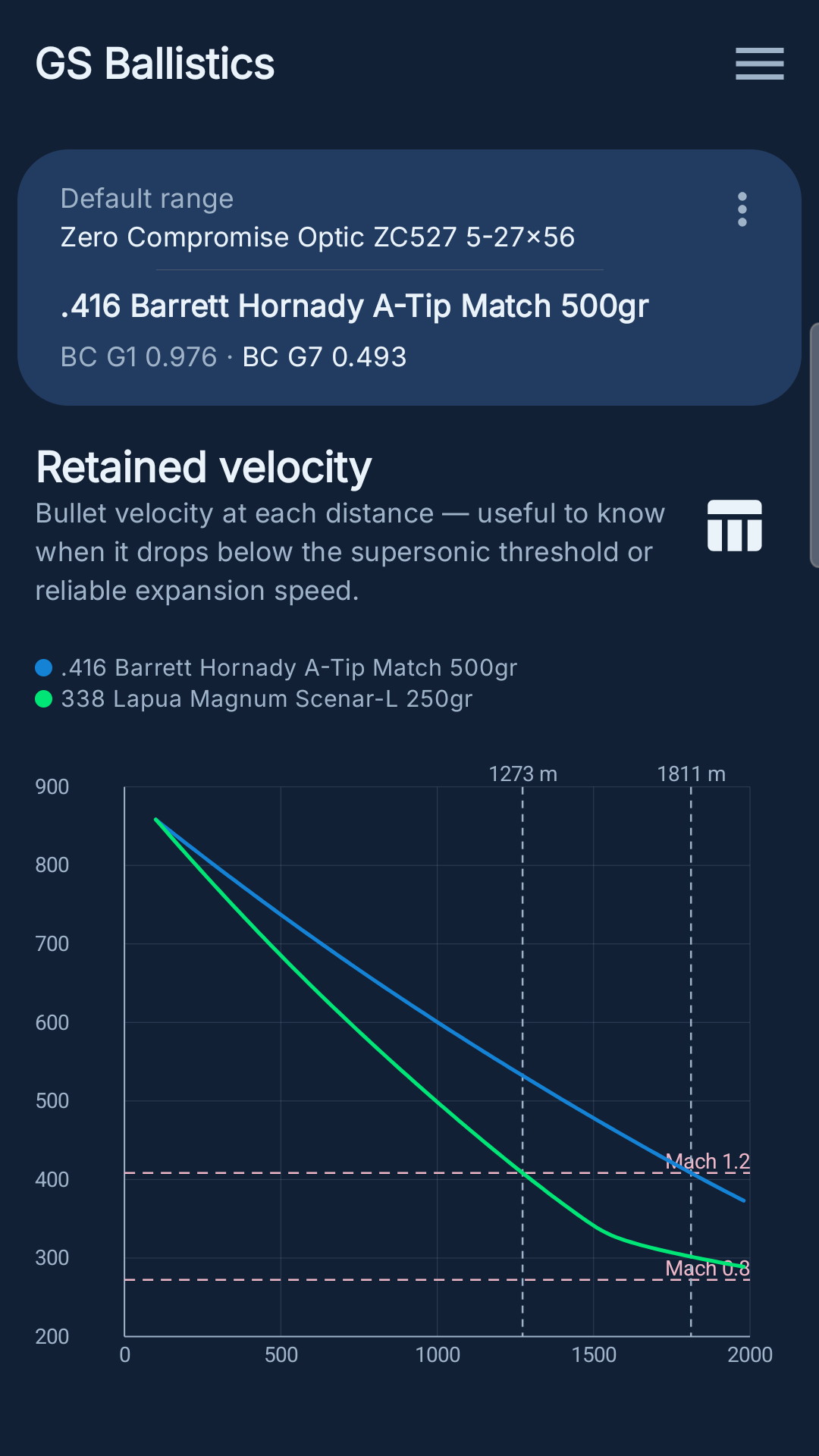
Remaining velocity chart

Bullet velocity at each distance — useful to know when it drops below the supersonic threshold or reliable expansion speed.

9:41100
Remaining velocity chart, with a comparison bullet and the transonic thresholds

The chart also marks two reference transonic thresholds, Mach 1.2 and Mach 0.8, recomputed on the speed of sound at the temperature set (at 15°C and 1013 hPa Mach 1 is about 340 m/s), together with the distance at which each curve crosses them. Against those thresholds the trajectory runs through three bands:

  • Supersonic (above ~410 m/s) — the most predictable regime, the one you aim to still be in at the target.
  • Transonic (~410–270 m/s) — drag and stability change abruptly: this is where groups tend to open up.
  • Subsonic (below ~270 m/s) — predictable again, the band of ammunition designed to stay there from the muzzle onwards.

The band to avoid is the transonic one: better to pick a maximum working distance at which the bullet still arrives comfortably supersonic.

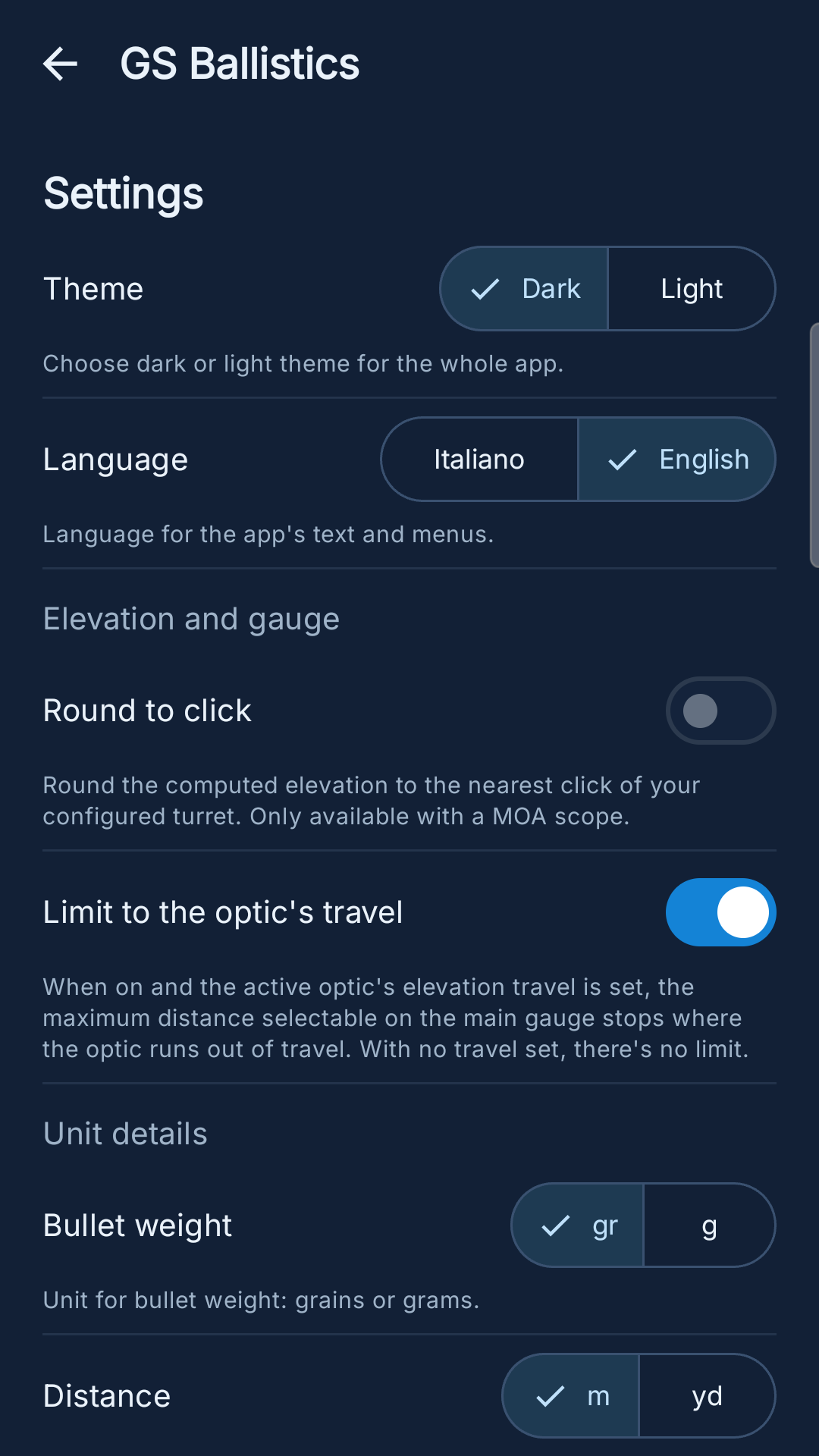
Settings

The Settings screen gathers the choices that hold for the whole app: appearance, language, elevation behavior and the unit of measure of every quantity.

9:41100
Settings
  • Theme — choose dark or light theme for the whole app.
  • Language — language for the app's text and menus.
  • Round to click — round the computed elevation to the nearest click of your configured turret. Only available with a MOA scope.
  • Limit to the optic's travel — when on and the active optic's elevation travel is set, the maximum distance selectable on the main gauge stops where the optic runs out of travel.

Under "Unit details" you choose which unit the app shows each quantity in:

  • Angular unit — MOA or mrad, matching your scope.
  • Drag model — the drag table the ballistic coefficient refers to: G1 for classic bullets, G7 for low-drag boat-tail bullets (e.g. Scenar-L).
  • Distance — meters or yards.
  • Speed — meters per second or feet per second.
  • Drop — centimeters or inches.
  • Energy — joules or foot-pounds.
  • Bullet weight — grains or grams.
  • Table increment — step between the suggested distances in the dial and the table.
  • Maximum distance — maximum distance selectable in the dial and the table.

Exporting your data

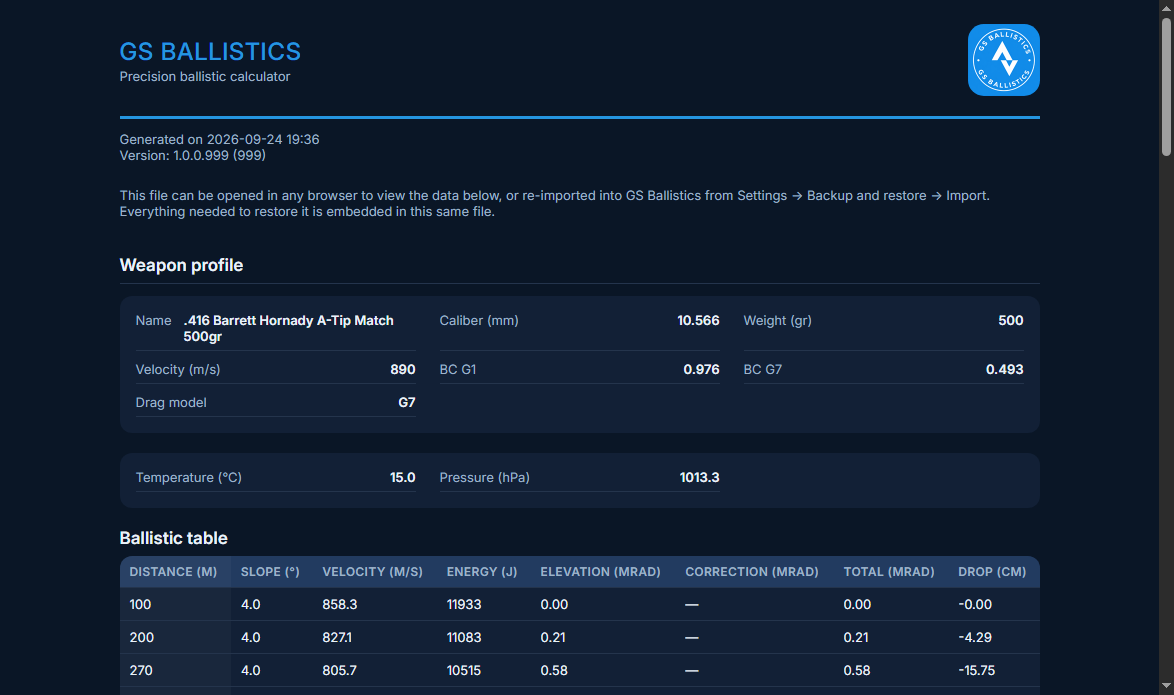
The "Import & Export" entry in the main menu writes out a single HTML file holding every bullet profile, range and rifle setting. The file opens straight away, in whichever HTML viewer the device is set to use: from there, as with any other page, it is one tap away from being shared to Drive, email or WhatsApp, or saved among your files.

The exported file is a readable report and a full backup at the same time. Opened in any browser it shows the active bullet profile with its ballistic table, the drop chart and the remaining velocity chart, with the same dashed transonic thresholds seen above; everything needed to restore the complete configuration — including the profiles not shown on screen — stays embedded in that one file, with no internet connection required. To restore it on this or another device, just import it from the same menu entry.

https://giorgio160586.github.io/store-assets/sample/gs-ballistics-sample-report.html
Exported report, opened in a browser
Get GS Ballistics on Google Play

Come posso aiutarti?

Scrivimi per farmi sapere di cosa hai bisogno, sarò felice di aiutarti.